

With the recent release of Stardew Valley 1.6, now was as good as any time to get back into the game. I’ve always been curious about modding Stardew Valley but, truthfully, had no idea where to start. After doing some research, I slowly but surely discovered how to add mods to the game, as well as where to find them.
I wanted to document how to go through this process so that if other players are looking at doing the same as myself, this post may be a helpful resource for getting started.
Please note, that this guide is based on my own experience of adding mods and custom content to Stardew Valley, and I have done my utmost to ensure information in this guide is accurate.

Getting Started
The first thing I did was head over to Nexus Mods and register on their website. This seems to be the core website to get mods for Stardew Valley.
Sign-up was quick and easy and once I signed up and had a quick look around at the different mods available. This gave me a much better idea as to what was on offer and how I could expand on my Stardew Valley game experience.
I then went on to find the Vortex Mod Manager. For myself, this felt the easier way of keeping on top of my Stardew Valley modding experience. You can also manually download and add the mod files to the game too.
The Stardew Valley Wiki Page has a very helpful and detailed guide for how you can manually add mods to the game here.
Vortex Mod Manager
What is the Vortex Mod Manager?
Well, it is a client from Nexus Mods that makes managing your game mods for Stardew Valley (and over three hundred other games) simple and straightforward!
I followed the step-by-step installation instructions and easily added Stardew Valley to the client. Next comes the fun bit. Adding mods to the game!
How to Download Mods using Vortex
Downloading mods for Stardew Valley is easy!
Once you have found the mods you want to add to your Stardew Valley game, head over to the right-hand side of the screen, and you’ll be given the option to download via Vortex or Manually. For myself, I was using the Vortex button to download my mods.

Note: There is a small number of mods that you can only download manually, so do keep an eye out for that. You can still add these to your game if you use the Vortex client by following the manual mod process linked below.
The next screen that you will be presented with is selecting either the slow or fast download. Nexus primarily is a free-to-join and-use platform, however, some members may want to opt for the paid service to unlock more features.
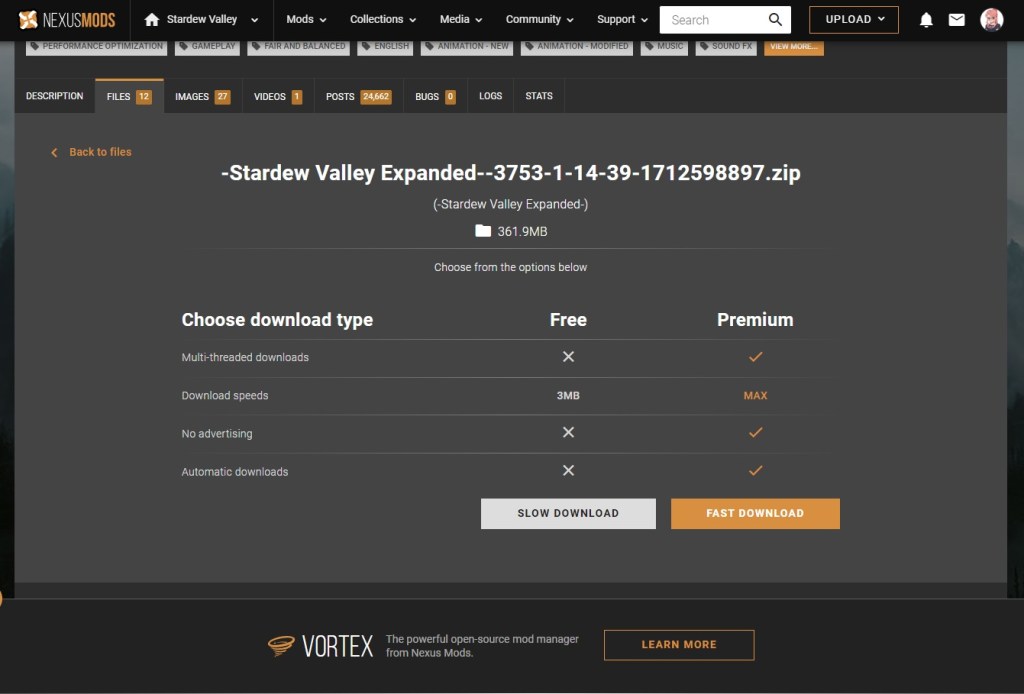
In my case, I am using the slow download option, however for the size of Stardew Valley Mods, it doesn’t take too much time at all. Some larger mods will take a few minutes to download but, during that time, you’ll probably find yourself browsing your next download.
Now that the mod is downloading in Vortex, you’ll see it appear in the Downloads section of the Vortex Client.

Upon completion, a small pop-up will appear to let you know that it’s all downloaded and now in your game.
And that’s it! What seems like a slightly daunting experience initially when adding mods to Stardew Valley is actually very straightforward.
However, if you prefer to add your Stardew Valley Mods manually, here is an easy-to-follow tutorial from Sarity!
Top Tip: Always ensure you check the requirements section of each new mod you download for Stardew Valley on Nexus Mods. This will ensure that you have all the mod elements needed to ensure everything runs smoothly for you!
Launching a Modded Game
This is a step that I forgot to do the first time I launched my modded game. Instead, I was just loading the vanilla version of Stardew Valley instead.
You’ll need to launch the StardewModdingAPI. You’ll find this in the following location:
Local Disk C: > Program Files (x86) > Steam > steamapps > common > Stardew Valley
Once you’ve located the StardewModdingAPI in your Stardew Valley folder, you can launch the game. A command prompt box will appear and will begin to collate the information needed to get your modded game running. It can take a moment or two to run through this process. Then, once this is complete, you’ll be ready to jump straight into your game as usual, just with all the added mods!
Top Tip: Why not create a desktop shortcut for StardewModdingAPI by right-clicking the icon and selecting Create Shortcut from the drop-down menu. You can then drag and drop this onto your desktop.
First Up, Essential Mods
Initially, I was prompted to download the Stardew Modding API, which is more commonly known as SMAPI. This is an essential base framework for many mods for Stardew Valley and is a must-have to get started with. When using Vortex, you’ll be prompted to download SMAPI if you haven’t done so already.
The second mod that I downloaded was the Content Patcher mod. When researching Stardew Valley Mods, this was another that was mentioned multiple times to me that is helping build that base for modding the game.
Now that you have both SMAPI and Content Patcher downloaded, you’re ready to tailor your Stardew Valley experience with even more mods for the ultimate gameplay experience!

Mods, Mods, Mods!
Apart from SMAPI and Content Patcher, there are numerous mods out there for Stardew Valley. From expanding on the gameplay experience, changing the graphics, more fashion choices for your characters, automation and so much more!
Here I’ve listed some of the initial mods that I’ve added to my own game, with links to the mods themselves so you can discover more about them!
Gameplay & User Interface
- NPC Map Locations
- CJB Cheats Menu
- Look Up Anything
- Fashion Sense (plus additional FS-compatible fashions)
- Farm Type Manager
- Stardew Valley Extended
Graphics
If you’re like me, I was initially going to go with a more pastel colour feel for my graphics recolours but instead opted for a more natural feel. I chose to go with DaisyNiko’s Earthy Recolours for both the world of Stardew Valley and the interior of the different locations.
That’s not to say that I won’t swap and change in the future, just for now, this was what kind of graphics style I wanted for my current play-through.
Future Mods?
I wanted to keep my first wave of mods relatively small in amount, but also mainly essentials. I also didn’t want to overwhelm my game or myself too quickly. There are several mods I’ve spotted that I’m planning on adding in slowly in the next few days, depending on how my computer handles more mods.
If you’ve played a particular very popular life simulation game at any point since the franchise launched in 2000 with mods, then you may well relate to my dilemma!
There are also aims to tailor my Stardew Valley experience to make it more aesthetic, but also expand the gameplay experience.
So here’s to a new modding adventure in Stardew Valley!
Do you play a modded version of Stardew Valley? If so, what mods do you use and recommend to others?
Author’s Note: While I’ve done my best to ensure the information in this guide is correct, I welcome any feedback relating to it. I’ll do my best to ensure any changes/updates are accurate and updated in a timely manner.

 leekscosycorner